

how to
LISTEN TO A PRIVATE PODCAST
You can listen to episodes on your favorite podcast app like Pocket Casts or Apple Podcasts, or directly in the Substack app.
Need help? Shoot me a note!
You can also check out this Substack “how to” page for instructions if you need help throughout the process.
To listen in your preferred app, follow these steps:
(it’s not as daunting as it looks, I promise)
Step 1 | Subscribe to Make Time for Lunch
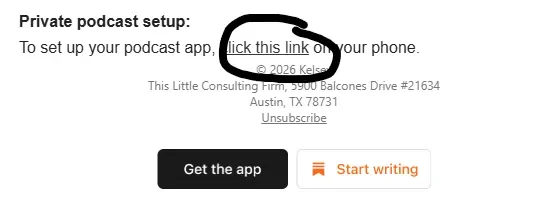
At the bottom of the welcome email, Substack will send you a link to connect the Make Time for Lunch private podcast to your podcast app. Click it:
Step 2 | Start Setup-Up Process
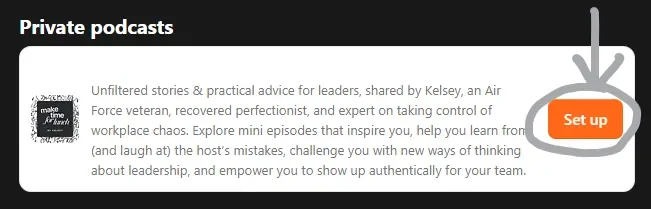
Once you click the link, a new page will open that shows the Make Time for Lunch podcast and includes a button titled “Set up.” Click that button:
Step 3 | Follow the Prompts
You’ll be redirected to a new page that will help walk you through the process to start listening.
IMPORTANT: Make sure you’re logged in to the podcast app on your phone using the same email you used to subscribe to Make Time for Lunch.
Step 4 | Configure Your Podcast App
On the same page as Step 3, copy-paste the private RSS feed into the search bar in your preferred podcast app (like Pocket Casts, for example).

Step 5 | Start Listening!
Make Time for Lunch will now show up in your app like any other podcast.